
The installation and initial setup have already been completed, so you do not need to install Hermes Agent manually.
Connect Hermes Agent to your preferred Large Language Model (LLM).
Configure your AI model and verify that it is working.
Start interacting with Hermes Agent.
Understand optional security enhancements for your VPS.
1. Before you begin
Requirement | Description |
VPS access | VPS IP address and SSH login credentials |
SSH client | Terminal on Linux/macOS |
LLM provider | A supported provider such as OpenAI, Anthropic, Google Gemini, or another supported service |
API credentials | Provider API key or supported authentication method |
Model selection | The model you intend to use with Hermes Agent |
How the connection works:
The LLM may be hosted by an external provider; your VPS needs outbound connectivity to that service.
2. Connect to your VPS via SSH
Obtain your VPS login details
VPS IP address
SSH username
SSH password or private key
SSH port (default is 22 unless otherwise specified)
Open your SSH client
Enter the following command, replacing the example username and IP address with your actual VPS details:
ssh root@YOUR_VPS_IP -p22Example only:
ssh root@192.0.2.10 -p22If prompted to confirm the host key, verify the fingerprint through a trusted channel before accepting it.
Enter your SSH password when prompted. Password characters are not displayed while typing.
NOTE: 192.0.2.10 is a documentation example only. Use the actual IP address provided with your VPS. |
3. Launch Hermes Agent
Check the installation
hermes --version
This displays the installed version if the command is available. You can also check the command location:
command -v hermesIf the command is not found, check the provisioning instructions or contact Exabytes Support before attempting to reinstall Hermes.
Start Hermes Agent
hermesIf initial onboarding has not been completed, Hermes may prompt you to configure a provider and other settings.
If it is already configured, it may open directly into the interactive CLI.
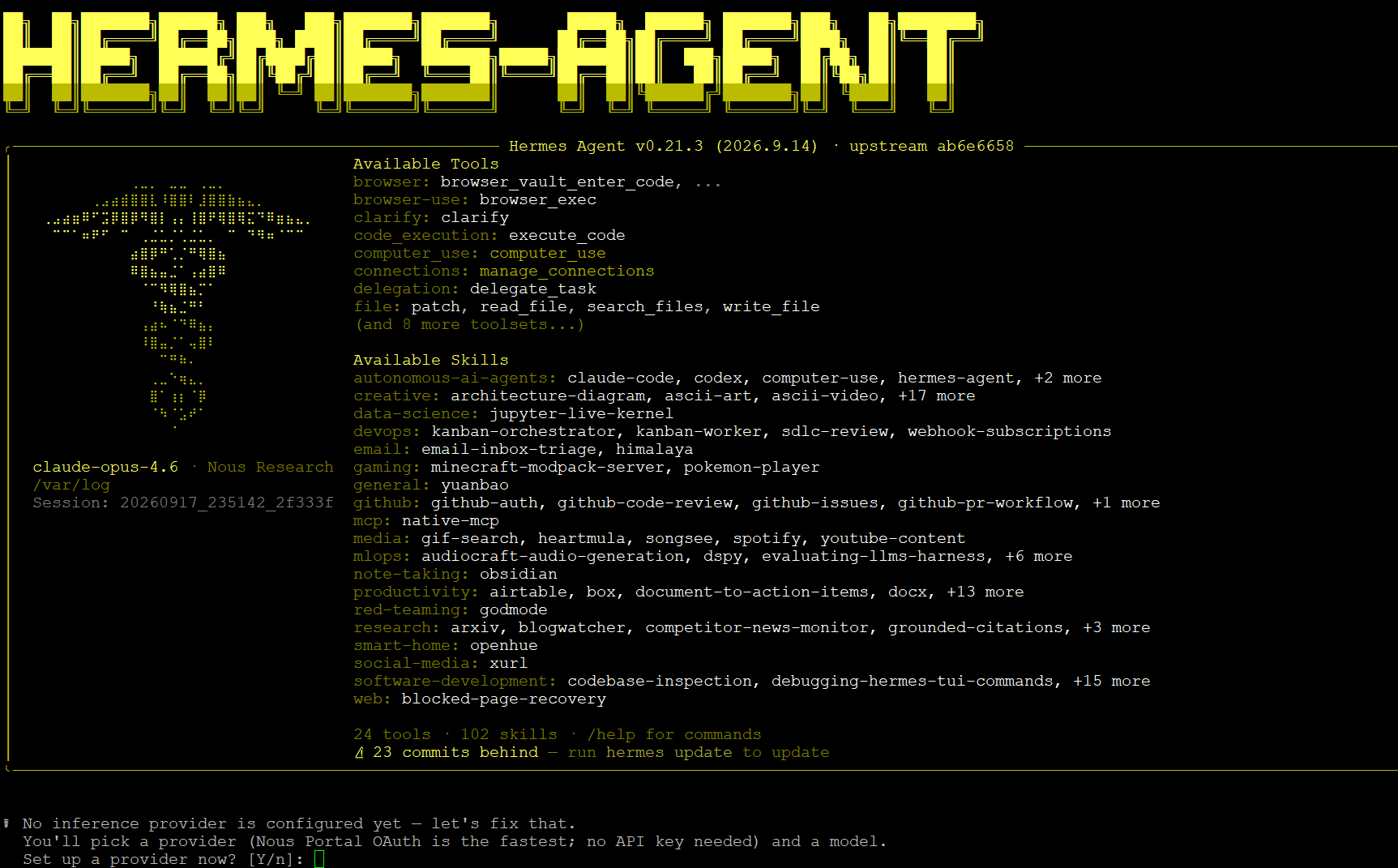
You should be able to access the Hermes Agent CLI and interact with the agent after a supported LLM provider is configured. The exact startup screen and prompts may vary by release and provisioning. |
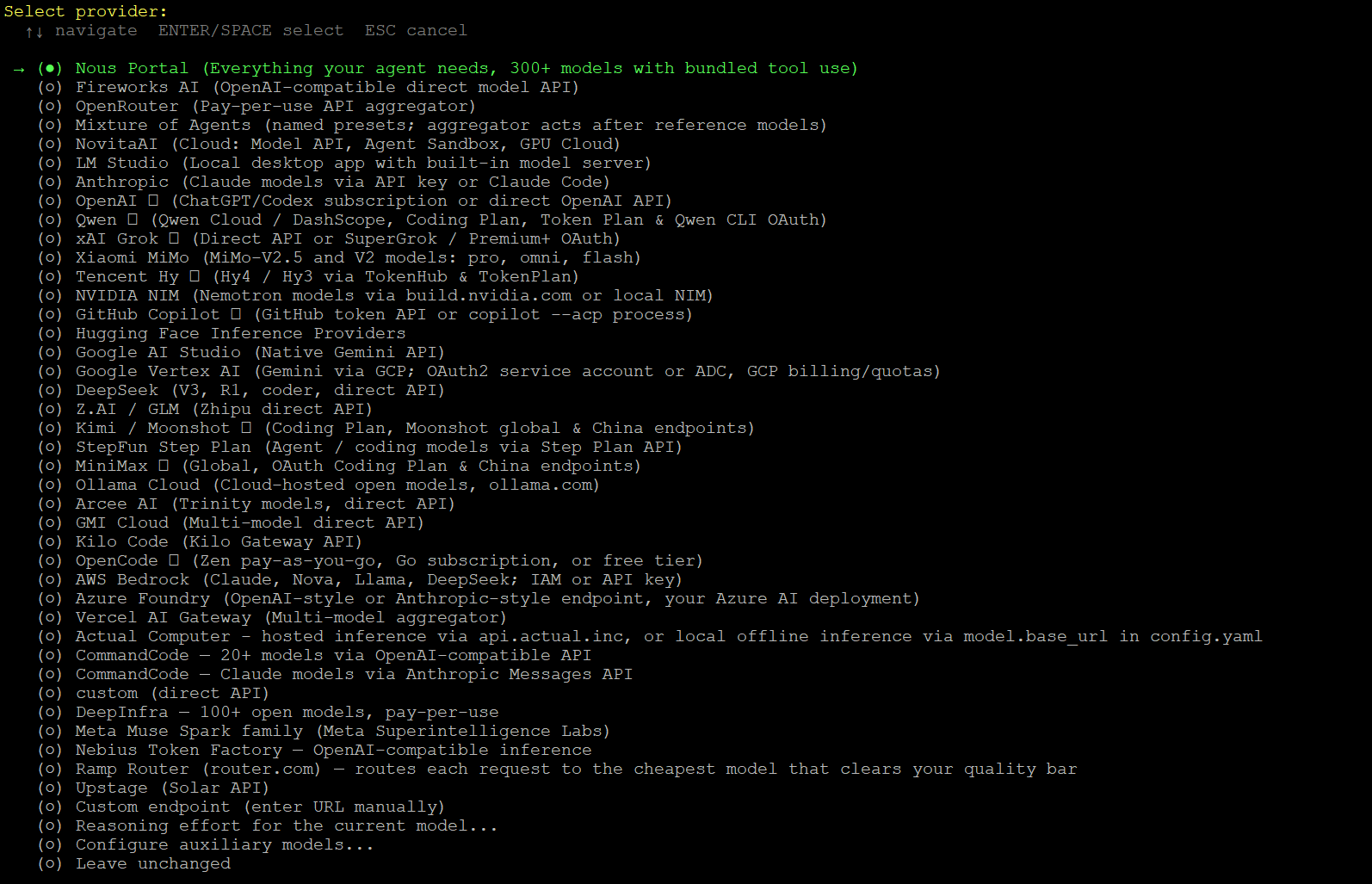
4. Choose your preferred AI model provider
The VPS provides the runtime environment; the model may be hosted externally.
Unless your package explicitly includes AI credits or credentials, you must provide and manage your own.
Provider | Getting started |
OpenAI | Create/manage API keys: https://platform.openai.com/api-keys | Platform: https://platform.openai.com/ |
Anthropic | Console: https://console.anthropic.com/ |
Google Gemini | API keys: https://aistudio.google.com/apikey |
DeepSeek / compatible providers | Check provider API documentation and confirm compatibility with your installed Hermes release: https://api-docs.deepseek.com/ |
5. Create an API key
Example: OpenAI API key
Visit https://platform.openai.com/api-keys.
Sign in to your OpenAI account.
Create a secret API key using the available account or project settings.
Copy the key and store it securely. Some providers display the full secret only once.
Ensure your API account has the required billing setup and access to your intended model.
PROTECT YOUR API KEY Treat an API key like a password. Do not share it in public chats, screenshots, support tickets, source-code repositories, or unsecured documents. Anyone who obtains it may be able to make API requests that incur charges against your account. |
6. Configure the provider using the Hermes onboarding wizard
Launch Hermes
hermes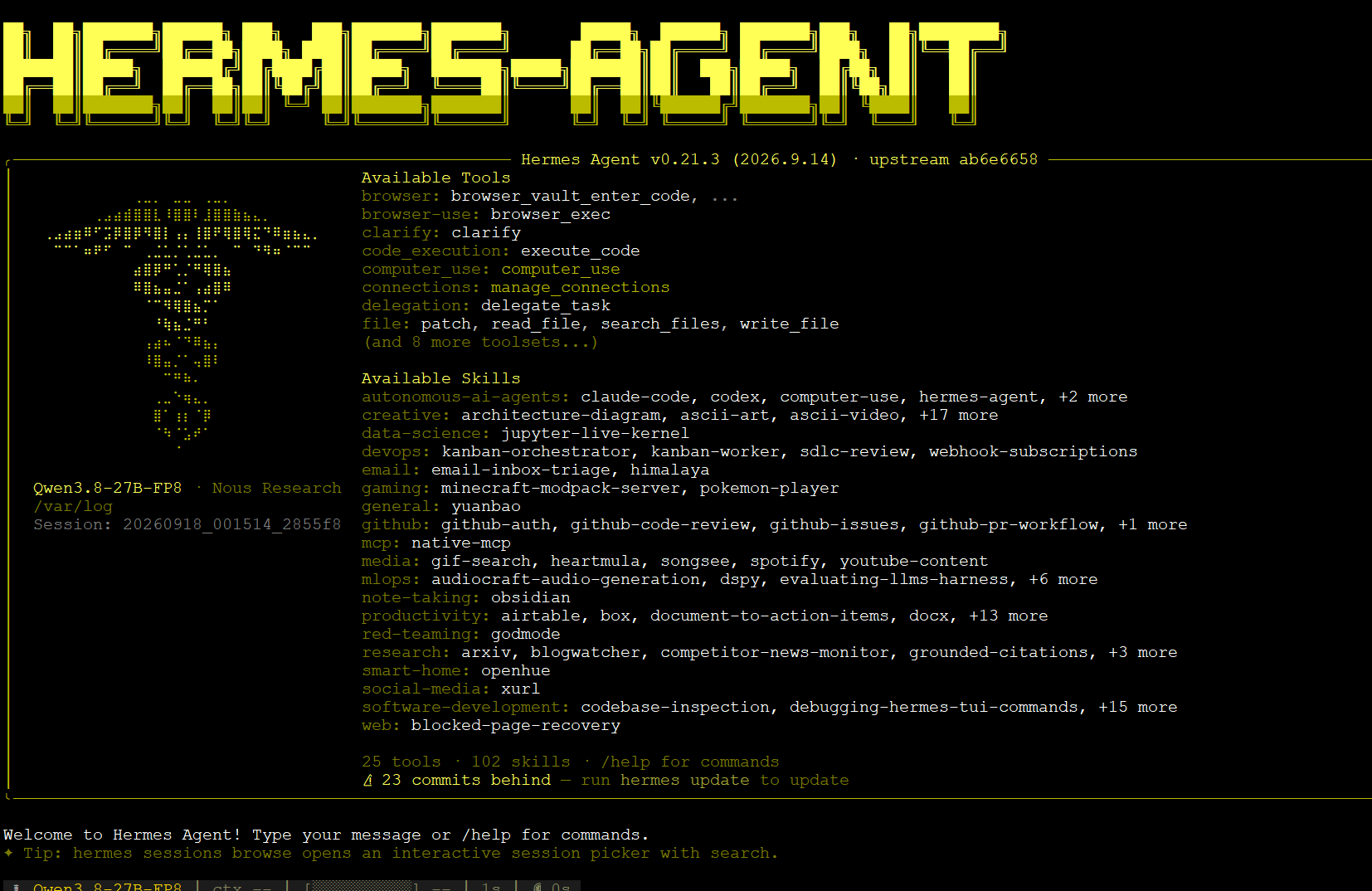
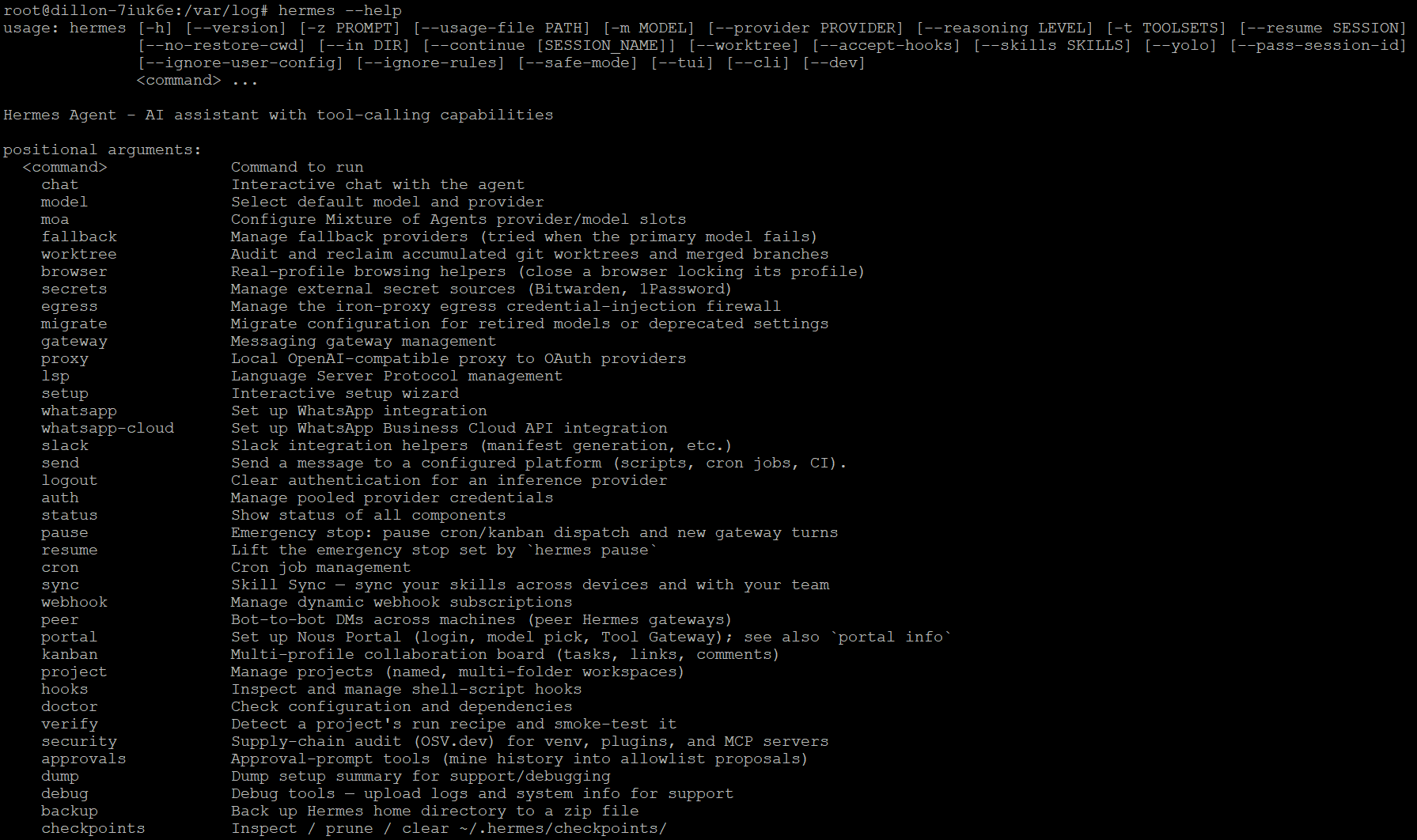
If the initial setup wizard appears, proceed with the prompts. If it does not appear, check available CLI options:
hermes --helpWithin the interactive interface, /help may also be available, depending on the release.
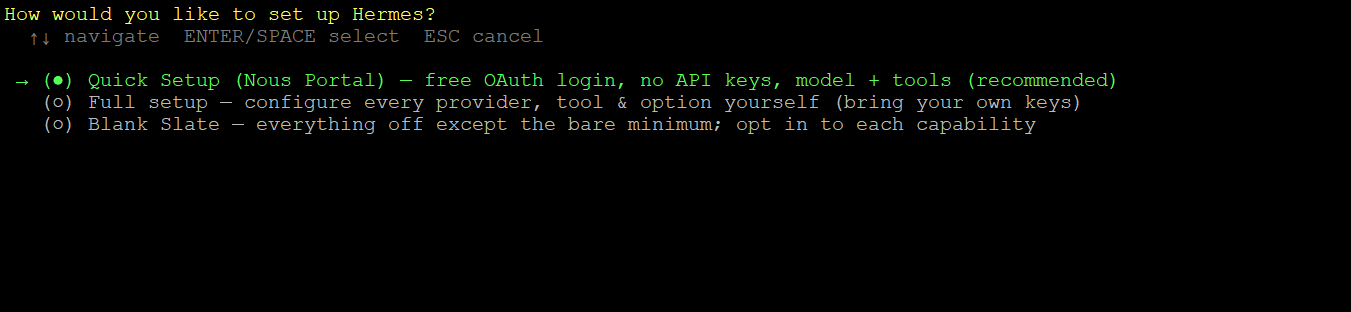
Select a setup mode
Quick Setup may be suitable only when its authentication method and defaults match your requirements.
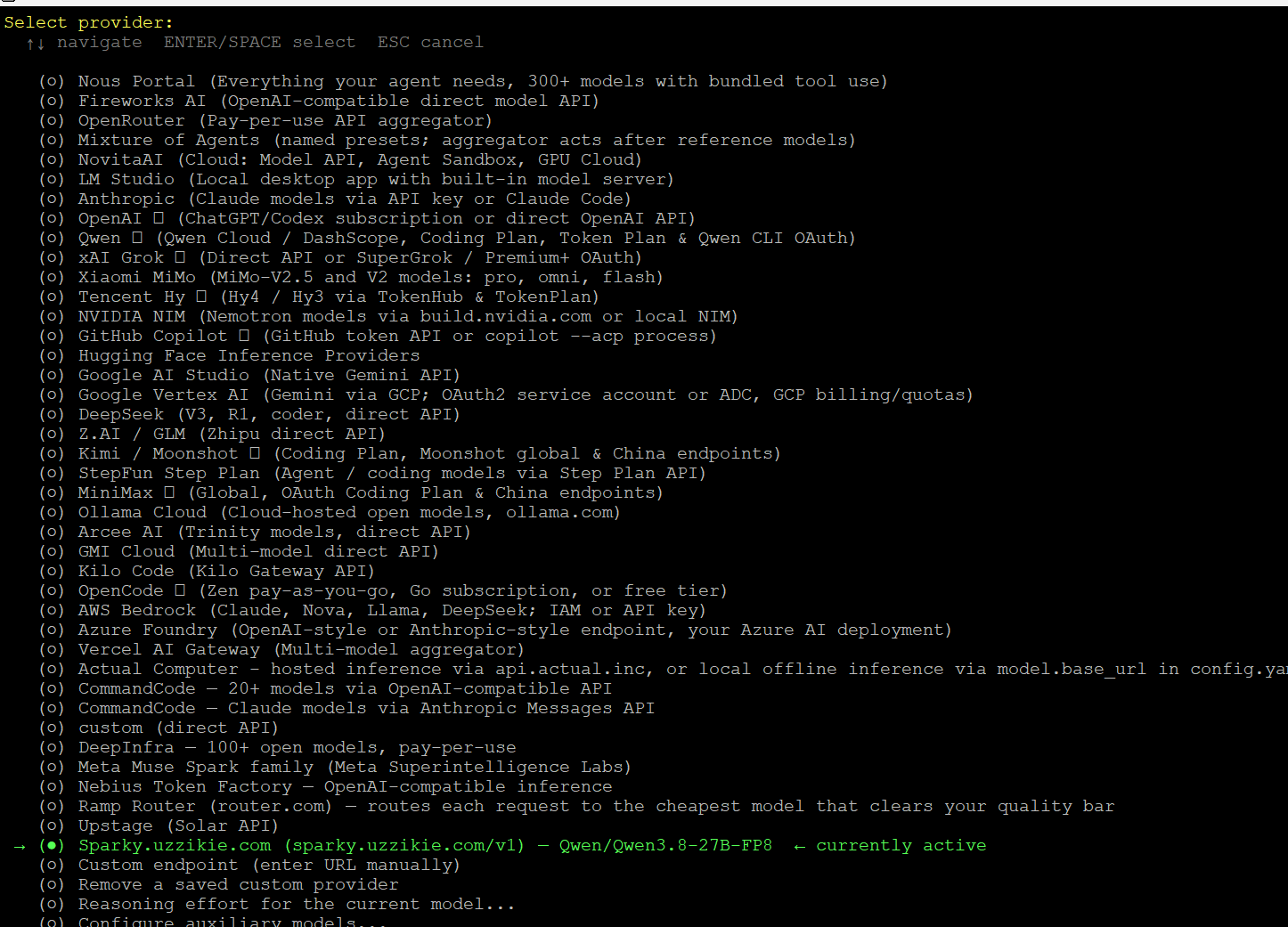
Select your LLM provider
Use the terminal menu controls shown by your installed version.
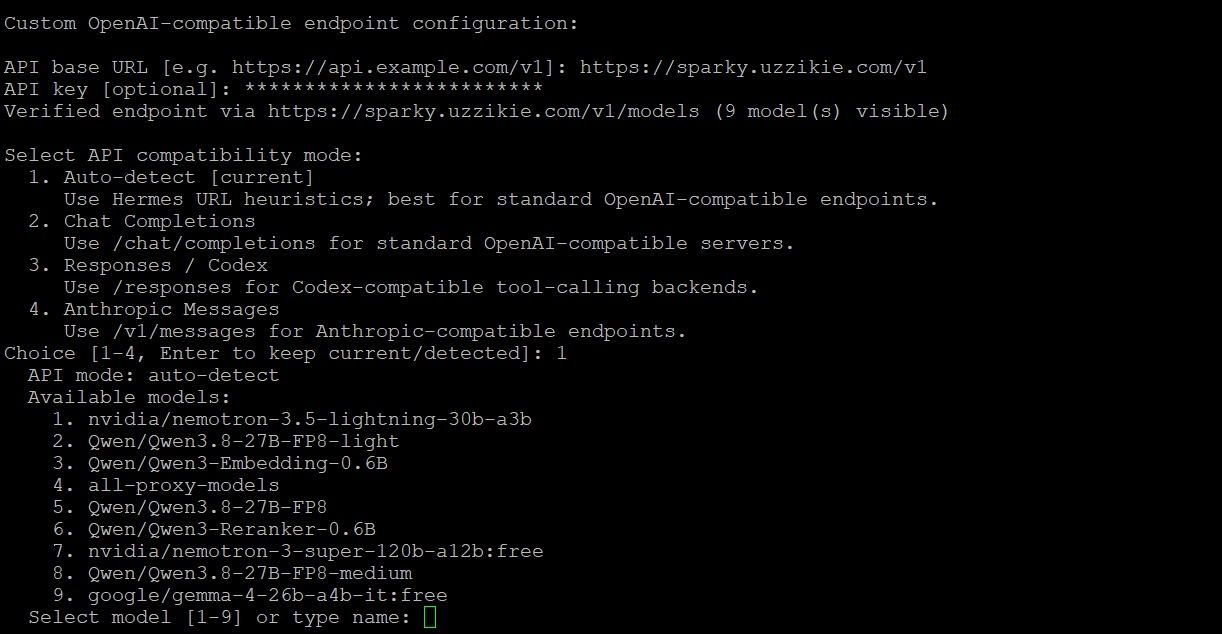
Enter your API key
Enter or paste the API key when prompted.

Check that it is copied completely and contains no unintended spaces.
Use a secure credential input if provided. Avoid putting secrets directly in command-line arguments.
For a web-based or external gateway, follow that integration’s authentication instructions.
Select your model
Consideration | What to check |
Capability | Does it support your intended tasks? |
Tool calling | Does it support the tool-use features you need? |
Context window | Can it handle your expected input size? |
Cost | Review input/output pricing and other usage charges. |
Availability | Confirm that the model is enabled for your provider account. |
Complete setup
Optional integrations such as messaging channels or web search can generally be configured later if you do not need them immediately.